
Training a custom AI model with Sensoft
Not yet fully available. You can perform a part of the process in close collaboration with Sensoptic.
Applies to
Sensoft Vision 2.3.6 and later
Process
Training a custom AI model to classify defects on filaments with Sensoft involves the following steps:
- Define the classes
- Label the photos
- Train the model
- Evaluate the model
It thus is a project of a few man-weeks to label the photos and evaluate the model and involves costs, for Sensoptic to train and evaluate the model.
Defining the classes
Not yet available. Currently use only the classes of the included model.
Labeling
You can label photos for training directly in Sensoft. To label, AI has to be active and the AI results shown. You can then click with the right mouse button on the photo on page Results and activate the Edit AI results entry from the context menu, see Figure 1. This allow you to edit the bounding boxes. Top left on the photo two fields appear, as shown in Figure 2. The field Use to train indicates whether the current photo will be used to train the model. The drop-down list indicates the class of the selected bounding box. To change the size of a bounding box, select it by clicking on it, and drag one of the corner handles (little squares) that appear. To change its class use the drop-down list, or press the L key for Lump, D for Dust, H for Hair or U for Uncertain. To create a new bounding box, simply draw a new rectangle by dragging (clicking on a free spot and moving the mouse holding down the mouse button). To delete a bounding box, select it and press the Delete key.
Note that changing the bounding boxes will automatically set the Use to train field and thus schedule the photo to be used in the next model training. Start the labeling operation when reviewing the AI results. When the AI is more or less correct, go to the next photo (by scrolling the mouse wheel over the photo or by pressing the Right key) without making any changes to the bounding boxes. The Use to train field will remain without checkmark, we don't want to train the AI model on photos it is already good at. If in contrary the AI results are not good you can correct them, the Use to train field will automatically be set to true. We recommend to label clear cases and not to label too complex cases (like e.g. Figure 3 with plenty of small blisters). If you want to abort labeling a photo, just clear the Use to train field.
On a photo with Use to train set to true, you see your manually made labels (bounding boxes). These are called the Ground Truth (GT) as opposed to the predictions that the AI model infers. Sometimes you want to see both, e.g. wen reviewing how a new AI model performs. When you click with the right mouse button on the photo, you can toggle Show AI Pred with GT to see both. The predictions from the AI model will be shown with dotted lines. When you start editing the bounding boxes, the dotted ones disappear, to remove clutter while editing. To see them again, reload the fault by going to the previous one and then back.
The GT labels are stored in a JSON file accompanying each labeled photo: a human readable text file with the same filename as the photo, but with extension "json". In Sensoft Vision you can select all labeled faults of a spool by writing json in the Select faults field. For finding the unlabeled ones, use "not json".
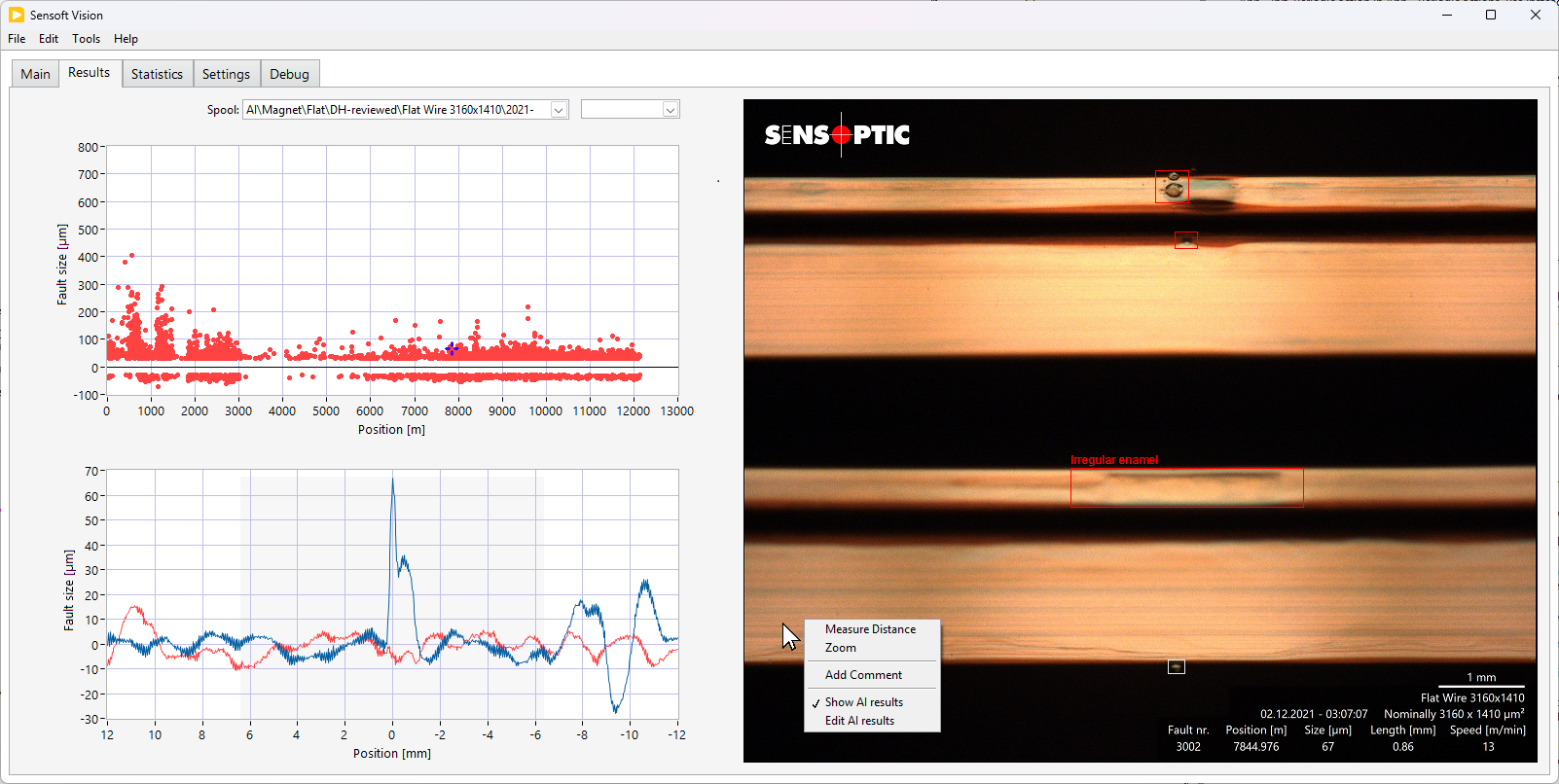 Figure 1: Bounding boxes highlight the defect features found by the AI model in the photo. You can toggle the highlighting by clicking on the photo with the right mouse button. |
Figure 2: Three defects barely visible behind wire |
 Figure 3: Many small blisters. Not ideal for training, since hard to label and many edge cases. |

How to label well
- It is important to label consistently. If in doubt, do not include the photo in the training set.
- Correct border around the feature. When drawing the bounding box, leave some space around the feature (about 20 pixels, orient yourself from the bounding boxes predicted by the AI model). Leave the same space in the four directions. During training the AI model is rewarded if their predictions are near to your labels.
- Use the zoom (Ctrl + Scroll wheel) to set the bounding box precisely.
- Edge cases: There will be plenty, since there are many smooth transitions from an evident defect to something clearly innocuous. A blister can get smaller and smaller without a clear boundary, a drop can get less and less liquid until it sticks firmly on the enamel, dust can get to big or sticky to ignore. Be consistent also in the edge cases. In our standards model we classify normal blisters as Lump. Very small blisters, perhaps 10 microns in height and thus less clearly identifiable on the photo we classify as Uncertain. Even smaller blisters we omit entirely. Try to do the same. The model is trained to be meticulous at not missing faults, so even a few GT labels of very small features will lead to many small feature predictions.
- Sometimes defects are barely visible because behind the filament, as in Figure 2. Marking such defects on the one hand helps the model recognize more defects, on the other hand leads the model to have more ghost predictions. Therefore there is a threshold in defect visibility, below which one should not mark defects any more. Figure 2 represents more or less this threshold.
- Include also some photos (perhaps 1% to 5%) where no defect feature is visible, as in Figure 4.
- Label all defects of rare classes, like Mosquito. The model learns easier if no class is much rarer than the others.
- The total number of images to label depends much on the variability of the defects. Try to label at least 100 images in each class. More is better, up to perhaps 5000 images per class. The standard wire model is trained on about 6000 images, which can be added to yours, if your model is also for enameled wires.
Training the model
Before sending us the training set, please test you labels for lapses. You can do this with a tool included in Sensoft Vision, that you call by the menu command Tools ▶ Custom AI Model ▶ Export Snippet of Every Labeled Defect... . It will create a snippet of what is inside every bounding box, and stores them separated by class, see Figure 5. You can then look at them using the normal File Explorer (with view set to Large icons) to find suspicious ones. If you find a suspicious one, copy the file name, click on the Spool: field on page Results, and go to the first row (called "Filter..."), click on it, and paste. It will search all spools, load the containing one, and go to the specific fault. You can then examine it and correct it.
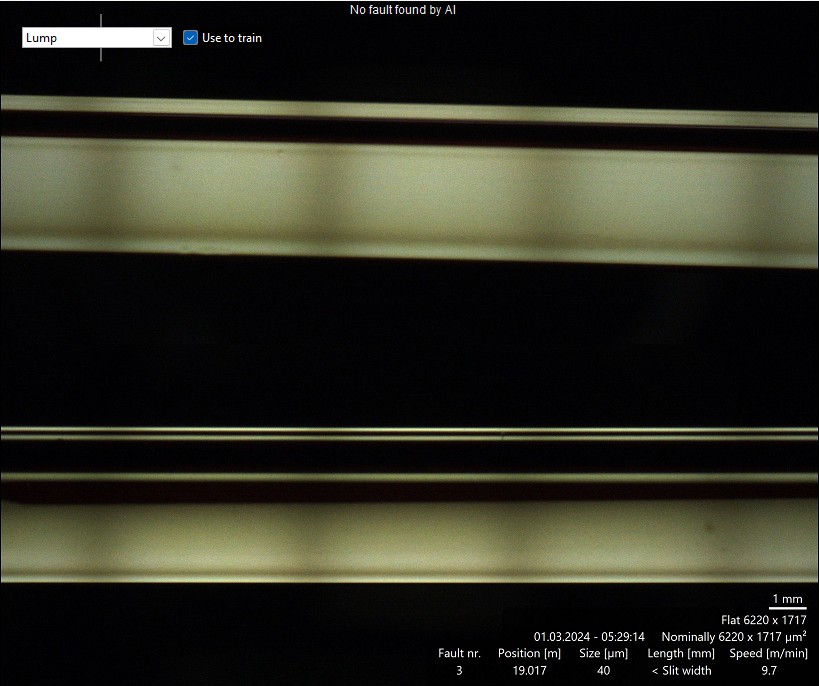 Figure 4: If possible, include also some images with no visible defect and no label. |
 Figure 5: Snippets of all lumps in the training set, created by an included tool. |
When the training set is ready, send it to us using the menu command Tools ▶ Custom AI Model ▶ Prepare for Custom AI Training... . It will collect the training data, compress it to a zip file and prepare it to be sent to us, best to Daniel Haertle (d.haertle@sensoptic.ch), via SwissTransfer or any other transfer service of your choice.
Evaluate the model
We will send you back a link to an improved AI model. The zip file contains the AI model file Sensoptic AI.exe, which you can extract and copy to C:\Program Files\Sensoptic\AI replacing the old model file. This a) needs admin privileges and b) requires the old model not be running. If the old AI model is running you get an error saying that the program is running in another application. In that case you should use the Task Manager to find Sensoptic AI.exe under Background processes and end the task.
We will discuss together performance metrics of the new model with your data. You can of course also browse through your spools with Sensoft Vision. If you want to test the performance on the training set, I recommend to use the Select faults field to select the labeled faults by writing json in it, see above. I also recommend to have a validation set: a set of photos that you did not send us, that you use to test the new model. The best is if they are labeled, so that the comparison is more objective.